

Level 21 → 22: Time-Based Automation (Understanding Cron)
The Challenge
The Objective: You are currently logged in as bandit21. Your objective is to find the password for bandit22. Unlike previous levels where passwords were in static files or listening on ports, this password is being actively manipulated by a program running automatically at regular intervals.
The Constraints:
- You are logged in as
bandit21. - You cannot read the
bandit22password file directly due to permission restrictions. - The system’s time-based job scheduler (
cron) is executing a script. You must investigate the cron configuration directories to find this script, understand what it does, and intercept its output.
The Solution
The Concept: Cron and the Breadcrumb Trail In Linux, Cron is a daemon (a background service) that executes scheduled commands or scripts at specific dates and times. It is the heartbeat of Linux automation.
System-wide cron schedules are often stored in the /etc/cron.d/ directory. If you look inside a cron configuration file, you will see a specific syntax that tells the system exactly when to run the job, which user should run it, and what command to execute.
For this level, you must follow a three-step investigative breadcrumb trail:
- The Schedule: Read the cron configuration file to find out the name and location of the script being executed.
- The Script: Read the actual script file to figure out what it is doing with the password.
- The Output: Follow the instructions in the script to find where the password was dropped.
Execution: Tracing the Automation Follow these steps to trace the automation pipeline and extract the password.
Step 1: Look inside the cron configuration directory to find the job for bandit22, and read it to discover the target script. Type the following commands, pressing Enter after each:
Bash
ls -la /etc/cron.d/
cat /etc/cron.d/cronjob_bandit22
(The output will look something like this: * * * * * bandit22 /usr/bin/cronjob_bandit22.sh &> /dev/null. The five asterisks mean “run every minute”, and it is executing a specific shell script).
Step 2: Now that you know the location of the script, read its contents to see its logic. Type the following command and press Enter:
Bash
cat /usr/bin/cronjob_bandit22.sh
(The script reveals that it is copying the bandit22 password into a very specific file in the /tmp directory).
Step 3: Read the temporary file generated by the script. Type the following command (substituting the exact filename revealed in your script output), then press Enter:
Bash
cat /tmp/t7O6lds9S0RqQh9aMcz6ShpAoZKF7fgv
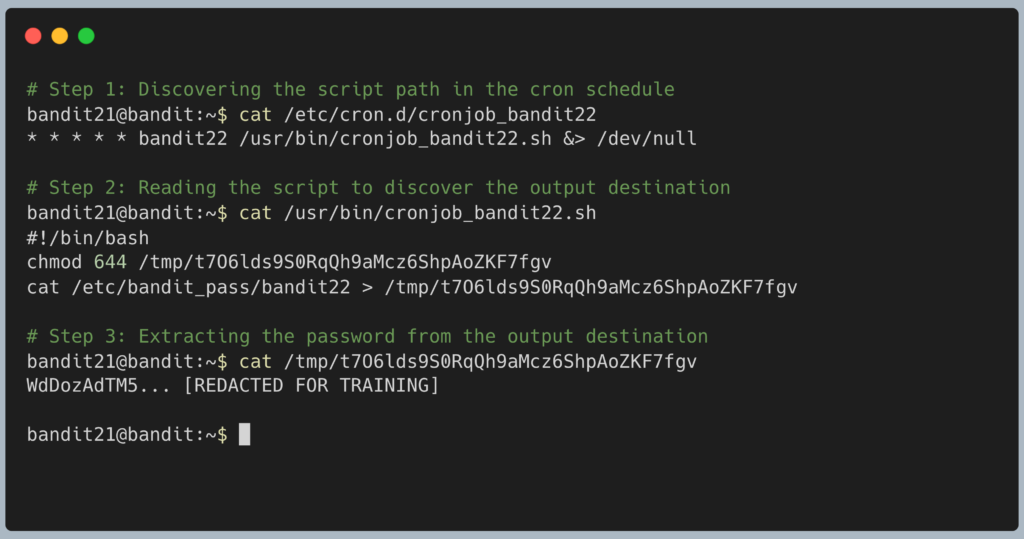
The terminal will output the password for Level 22. Copy this text to your clipboard. Type exit to close your connection, and get ready to SSH back in as bandit22.
DevOps in the Wild Cron is the absolute backbone of server maintenance. DevOps engineers use cron jobs to automate database backups every night at 2:00 AM, rotate massive log files so they don’t fill up the hard drive, and automatically renew SSL certificates before they expire. However, poorly secured cron jobs are also a massive target for hackers; if a script runs as the root administrator, and a hacker can edit that script, they instantly gain full control of the server.
Troubleshooting Pitfalls If your terminal is throwing errors, here is what went wrong:
- Error:
cat: /tmp/...: No such file or directoryYou either misspelled the massive string of random characters, or you tried to copy the filepath from a guide instead of reading your own terminal. The filename in the/tmpdirectory might change dynamically; always rely on the output from Step 2. - Error:
Permission deniedon the password file You tried to runcat /etc/bandit_pass/bandit22directly. You do not have permission to do this. You must read the copy of the password placed in the/tmpdirectory by the script. - I do not understand the script output The script uses the
chmod 644command to make the output file readable by everyone, and then uses the>(redirect) operator to dump the contents of the protected password file into that public temporary file.