

Level 6 → 7: System-Wide Searches (Permissions and Redirection)
The Challenge
The Objective: You are currently logged in as bandit6. The password for the next level is no longer conveniently located in your home directory or a specific subfolder. It is hidden somewhere across the entire server filesystem.
The Constraints:
- You are logged in as
bandit6. - You do not know the filename or its directory path.
- You only know three distinct properties about the target file:
- It is owned by the user
bandit7. - It is owned by the group
bandit6. - It is exactly 33 bytes in size.
- It is owned by the user
The Solution
The Concept: Searching the Root and Managing Errors To find a file located anywhere on the server, you must tell the find command to start searching from the very top of the Linux directory tree, represented by the forward slash (/).
However, searching the entire server creates a new problem. Because you are a standard user (bandit6) and not a system administrator (root), you do not have permission to look inside most system folders. If you run a standard find command across the whole server, the system will output thousands of lines of “Permission denied” errors, burying the one valid result you actually want.
To solve this, you must learn about Output Redirection. In Linux, command output is split into two streams:
- Standard Output (
stdoutor1): The successful results you want to see. - Standard Error (
stderror2): The error messages.
By adding 2>/dev/null to the end of your command, you are telling the system: “Take stream 2 (the errors) and redirect them into /dev/null (a special system file that acts as a digital black hole).” This filters out all the noise, leaving a completely clean terminal that only displays the single file you have permission to find.
Execution: Locating and Extracting Follow these steps to search the entire server cleanly and extract the password.
Step 1: Construct the system-wide find command using your constraints and error redirection. Type the following command exactly as it appears below, then press Enter:
Bash
find / -user bandit7 -group bandit6 -size 33c 2>/dev/null
(The terminal will process the entire hard drive and output a single file path, typically /var/lib/dpkg/info/bandit7.password.)
Now that the system has isolated the correct file, read its contents.
Step 2: Type the cat command followed by the exact path provided by your terminal in the previous step, then press Enter:
Bash
cat /var/lib/dpkg/info/bandit7.password
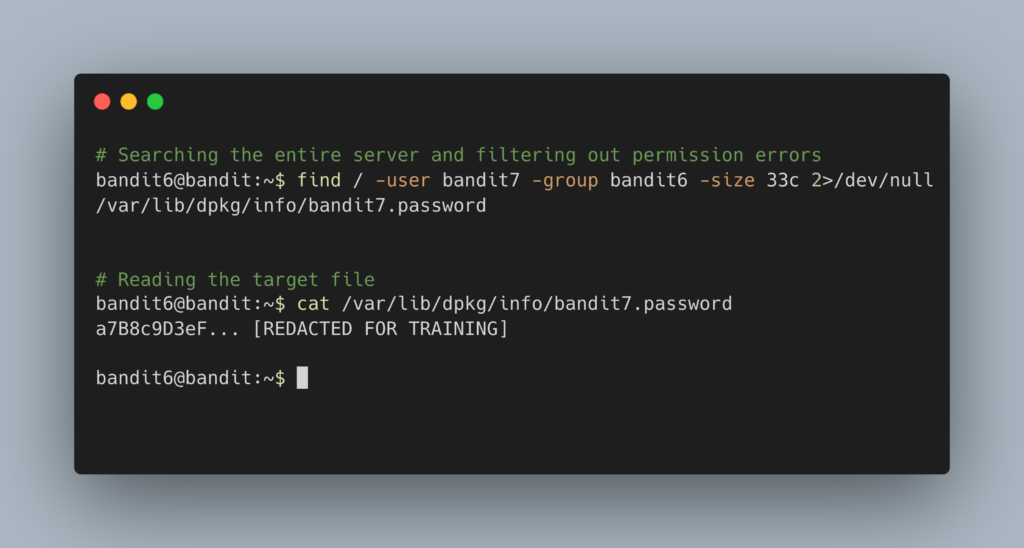
The terminal will output the password. Copy this text to your clipboard. Type exit to close your connection, and get ready to SSH back in as bandit7.
DevOps in the Wild Mastering 2>/dev/null is critical for IT automation. When DevOps engineers write automated shell scripts to search for system vulnerabilities or specific user configurations, they always route errors to /dev/null or a separate log file. If they don’t, standard “Permission denied” errors will pollute the script’s output, potentially breaking subsequent commands that rely on a clean data feed.
Troubleshooting Pitfalls If your terminal is throwing errors or acting strangely, here is what went wrong:
- My screen is flooded with hundreds of “Permission denied” lines You forgot to add
2>/dev/nullto the end of your command. PressCtrl + Cto stop the scrolling, press your UP arrow to bring the command back, append the redirect, and try again. - The command returns absolutely nothing You likely used a period (
.) instead of a slash (/) after the wordfind. A period tells the system to only search your current, empty directory. You must use/to search the entire server. - Error:
find: invalid argument -33cMake sure you type-size 33c. Do not attach the number directly to a dash without specifying the size flag first.