
Level 1 → 2: Reading the Basics (The Linux Filesystem)
The Challenge
The Objective:
Congratulations on successfully bridging the gap into the Bandit server. Your objective for this level is to find the password for the next level. It is stored in a plain text file located right here in your user’s home directory.
The Constraints:
- You are logged in as
bandit1. - Because you do not have a graphical user interface (GUI) with clickable folder icons, you must use command-line tools to interact with the filesystem.
- The target file is named
readme.
The Solution
The Concept: CLI Navigation and Concatenation
To survive in the terminal, you need to master two of the most fundamental commands in the entire Linux ecosystem: ls and cat.
- The Eyes (
ls): Short for List. When you type this, you are asking the server to list all the files and folders in the exact location you are currently standing. It acts as your digital flashlight. - The Voice (
cat): Short for Concatenate. While advanced engineers use it to stitch multiple data files together, its primary job is to instantly dump the text inside a file directly onto your screen (Standard Output) so you can read it.
Notice that the target file is not named readme.txt. This is a massive mental hurdle for beginners coming from Windows or macOS: Linux does not care about file extensions. A file is simply a container of data; it doesn’t need .txt at the end of it to know it holds text.
Execution: Locating and Extracting
Follow these steps to locate and extract the password.
Step 1: Verify what files are actually in the directory with you. Type the following command and press Enter:
Bash
ls
(You should see the word readme output on your screen.)
Now that you have confirmed the file’s presence, read its contents.
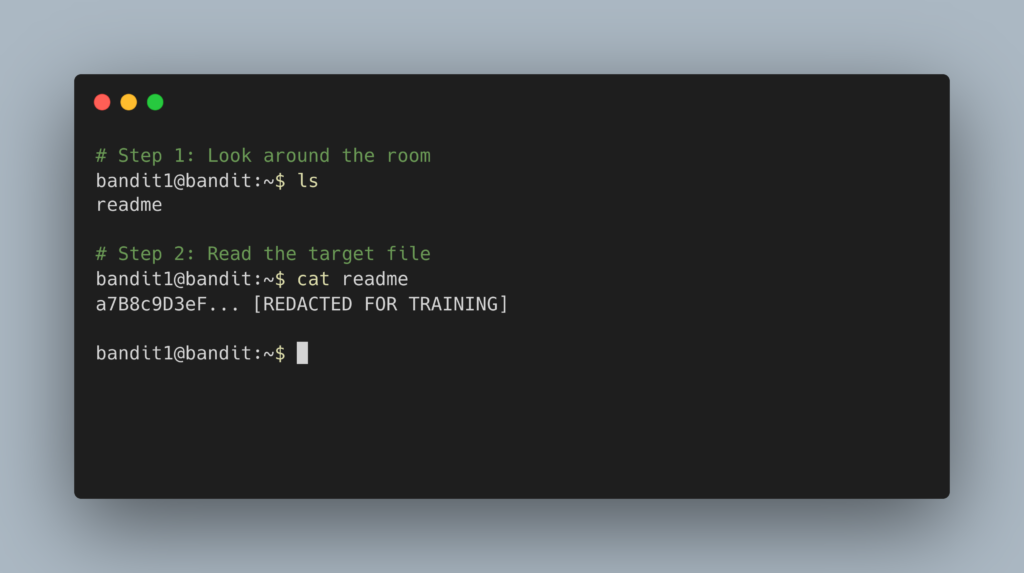
Step 2: Type the following command exactly as it appears below, then press Enter:
Bash
cat readme
The terminal will output a long string of alphanumeric characters. Copy this text to your clipboard. This is your password for Level 2. Type exit to close your connection, and get ready to SSH back in as bandit2.
DevOps in the Wild
Why is cat so important? Speed. In a production environment, a DevOps engineer rarely has the time to download a file to their laptop or open a heavy graphical text editor just to check a setting. If a web server crashes in the middle of the night, an engineer will SSH into the machine and immediately run a command like cat /var/log/nginx/error.log to instantly print the crash report to their screen and diagnose the problem in seconds.
Troubleshooting Pitfalls
If you did not get the password, here is what likely went wrong:
- Error:
cat: readme: No such file or directoryYou either misspelled the filename or you are not standing in the correct directory. Remember, Linux is 100% case-sensitive.Readmeandreadmeare two entirely different files. - Error:
Permission deniedYou are trying to read a file that doesn’t belong to you. Make sure you actually logged in using thebandit1credentials, notbandit0.