
Level 0 → 1: The Front Door (Understanding SSH and Ports)
The Challenge
The Objective: Welcome to the OverTheWire Bandit wargames. Before you can start cracking passwords or analyzing corrupted files, you need to learn how to actually enter the building. Your objective for Level 0 is to establish your first secure connection to the Bandit server.
The Constraints:
- Target Host:
bandit.labs.overthewire.org - Target Port:
2220 - Username:
bandit0 - Password:
bandit0 - You must use a terminal application to initiate this connection; a standard web browser will not work.
The Concept: Anatomy of an SSH Connection
To connect to a remote server, you cannot just type ssh and hope the computer figures it out. You have to provide an exact digital address. Let’s break down how your computer reads this request:
- The Command (
ssh): This wakes up the SSH program. It tells your local computer to get ready to build an encrypted tunnel. - The Identity (
bandit0@): The specific user account we want to log into. The@symbol literally translates to “at”. - The Hostname (
bandit.labs...): The domain name (or IP address) of the remote server. Think of this as the street address of a massive apartment building. - The Port Flag (
-p 2220): This is the most critical part. If the Hostname is the street address, the Port is the specific apartment number.
Standard SSH traffic always defaults to Port 22. If you forget to add the -p 2220 flag to your command, your computer will knock on Port 22, no one will answer, and your connection will fail.
Your First Login
Follow these exact steps to connect to the server.
Step 1: Open your terminal application (Terminal on macOS/Linux, or PowerShell/Command Prompt on Windows).
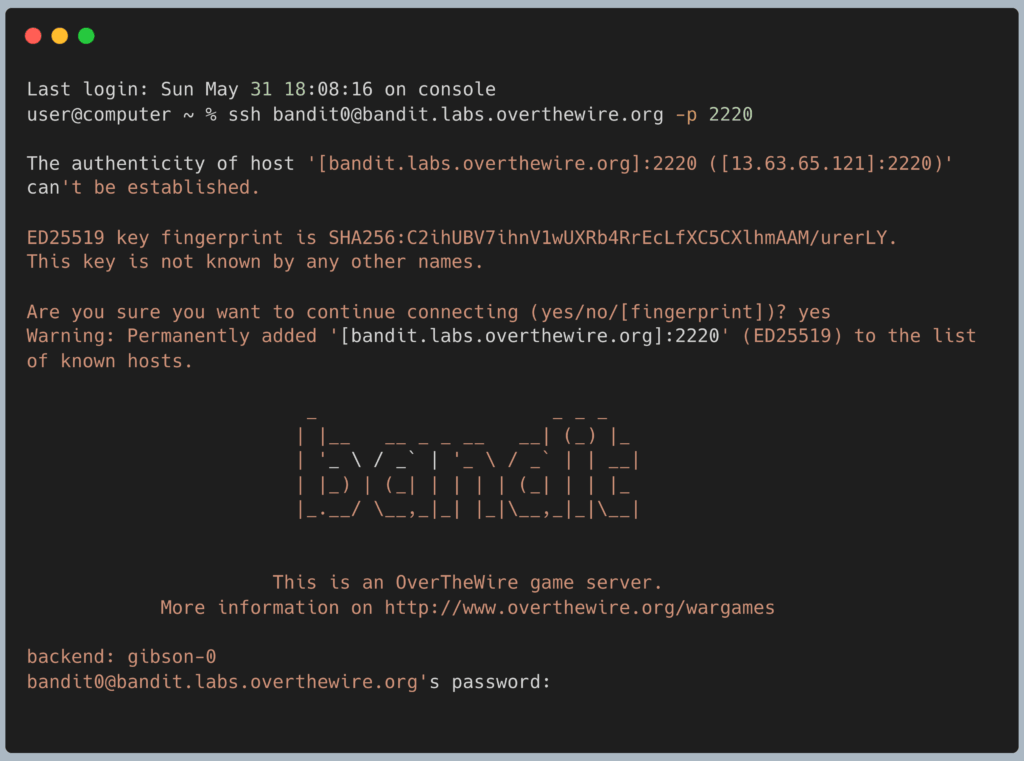
Step 2: Type the following command exactly as it appears below, then press Enter:
Bash
ssh bandit0@bandit.labs.overthewire.org -p 2220
Step 3: The server will ask you to verify the connection (type yes and press Enter if prompted) and will then ask for the password.
Type bandit0 and press Enter.
⚠️ The “Broken Keyboard” Illusion: When you start typing your password, the cursor on your screen will not move. No stars, dots, or characters will appear. Beginners often think their keyboard has frozen. It hasn’t! Linux intentionally hides password characters entirely to stop “shoulder-surfers” from seeing how long your password is. Just type it confidently and hit Enter.
Once you are in, you will see a large welcome message. You have officially bypassed the front door.
DevOps in the Wild
Why did the creators of OverTheWire change the port to 2220? They are teaching you a real-world security tactic.
In production environments (like managing an AWS EC2 instance), leaving your SSH door open on the default Port 22 is like putting a neon sign on your server. Automated hacking bots blindly knock on Port 22 all day across the internet, trying thousands of common passwords. By simply changing a server’s configuration to listen on a non-standard port (like 2220 or 49152), Cloud Engineers can drastically reduce the amount of malicious noise hitting their systems.
Troubleshooting Pitfalls
If you are staring at an error message, here is how to fix it:
- Error:
Connection timed outYour terminal tried to knock on the door, but the server completely ignored it. You almost certainly forgot to add-p 2220to the end of your command, or your current Wi-Fi network has a strict firewall blocking outbound traffic on port 2220. - Error:
Permission denied (publickey,password)You reached the server, but it rejected your identity. You either misspelled the username (bandit0) or you made a typo in the password. Remember, Linux is entirely case-sensitive.Bandit0is not the same asbandit0. - Error:
Could not resolve hostnameYou made a typo in thebandit.labs.overthewire.orgweb address. Check your spelling.