

Level 7 → 8: Searching Inside Files (The Power of grep)
The Challenge
The Objective: You are currently logged in as bandit7. Your objective for this level is to find the password for the next level, which is stored in a file named data.txt located right in your home directory.
The Constraints:
- You are logged in as
bandit7. - The
data.txtfile is quite large, containing thousands of lines of text and fake passwords. - The actual password is located on the exact same line as the word
millionth.
The Solution
The Concept: Parsing File Contents Up until now, you have used cat to read the entirety of a file and find to search for files based on their metadata. However, when a file contains thousands of lines of text, using cat will simply flood your screen, making it impossible to spot a single target word manually.
To search inside the contents of a file, you need to use grep (Global Regular Expression Print). The grep command scans through a target text file line-by-line and only outputs the specific lines that contain the exact keyword or pattern you are looking for. It is an essential tool for isolating specific data points within massive files.
Execution: Locating and Extracting Follow these steps to parse the file and extract the password.
Step 1: Verify the file is in the directory with you. Type the following command and press Enter:
Bash
ls
(You should see data.txt output on your screen.)
Now that you have confirmed the file’s presence, search its contents for the target keyword.
Step 2: Type the following command exactly as it appears below, then press Enter:
Bash
grep "millionth" data.txt
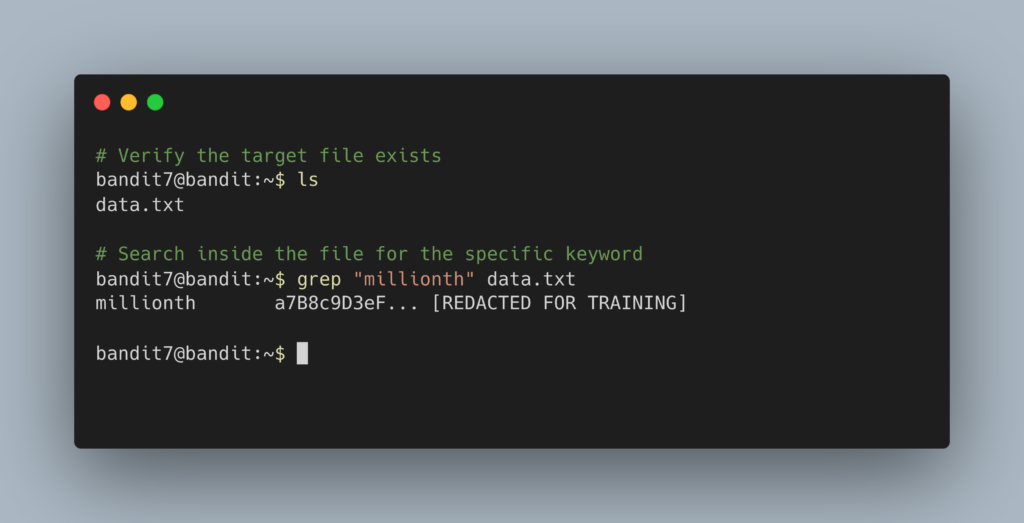
The terminal will output the single line containing the word “millionth” alongside the actual password. Copy the alphanumeric password to your clipboard (do not copy the word “millionth”). Type exit to close your connection, and get ready to SSH back in as bandit8.
DevOps in the Wild In a production environment, grep is arguably the most frequently used command by DevOps engineers and system administrators. If a cloud database server crashes, an engineer will not read a 50,000-line log file manually. Instead, they will run a command like grep "FATAL" /var/log/postgresql.log to instantly extract the exact timestamps and error codes leading up to the crash, turning hours of reading into seconds of targeted analysis.
Troubleshooting Pitfalls If your terminal is throwing errors or acting strangely, here is what went wrong:
- The terminal just dropped to a new line and is blinking/frozen You likely typed
grep "millionth"but forgot to specify the target file (data.txt). Without a file to look at,grepassumes it should wait for you to type something on your keyboard to search through. PressCtrl + Cto cancel the command and try again. - The command returned absolutely nothing The
grepcommand is strictly case-sensitive by default. If you searched forMillionth(with a capital M), it will not find the match. Always double-check your casing. (Note: You can use the-iflag, such asgrep -i "millionth" data.txt, to force a case-insensitive search). - Error:
grep: data.txt: No such file or directoryYou either misspelled the filename or you are not in the correct directory.