
The Challenge
The Objective: You have successfully navigated to bandit2. Your objective for this level is to find the password stored in a file located in your home directory. However, the creators of the wargame have laid a combined trap using special characters in the filename.
The Constraints:
- You are logged in as
bandit2. - The target file is named
-- spaces in this filename --. - Standard reading commands will fail because the terminal will misinterpret the spaces and dashes as system instructions.
The Solution
The Concept: Delimiters and Flags To survive this level, you must understand two fundamental rules of how a Linux terminal interprets text:
- Spaces are Delimiters: The terminal uses spaces to figure out where a command ends and where the targets begin. If you type
cat -- spaces in this filename --, the system thinks you are asking to read five entirely separate files. - Dashes are Flags: Even if you wrap the filename in quotation marks (
cat "-- spaces in this filename --"), thecatcommand sees the leading dashes and assumes you are trying to pass it a configuration setting (like--help), resulting in an “unrecognized option” error.
To bypass this, you must explicitly tell Linux to look in the current directory using the relative path ./ combined with quotation marks. By combining these, you force the terminal to treat the entire string as a literal local file, ignoring both the spaces and the dashes.
Execution: Locating and Extracting Follow these steps to extract the password without confusing the terminal.
Step 1: Verify the file is in the directory with you. Type the following command and press Enter:
Bash
ls
(You should see the file -- spaces in this filename -- output on your screen.)
Now that you have confirmed the file’s presence, read its contents by escaping the special characters.
Step 2: Type the following command exactly as it appears below, then press Enter:
Bash
cat "./-- spaces in this filename --"
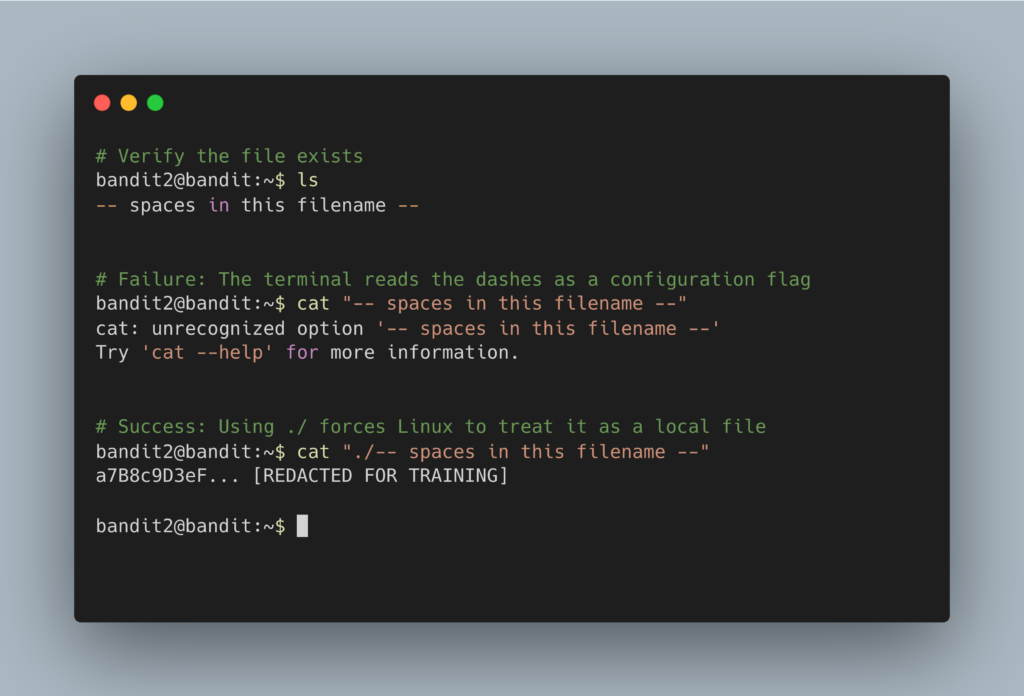
The terminal will output the password. Copy this text to your clipboard. Type exit to close your connection, and get ready to SSH back in as bandit3.
DevOps in the Wild Why does this matter outside of a wargame? If you ever wonder why cloud engineers and Linux administrators absolutely refuse to put spaces in their filenames, this is why. If a developer names a critical server configuration file -- New Config File Final.yaml, and a DevOps automation script tries to move it without strict pathing and quoting, the entire deployment pipeline will crash. This is why IT professionals strictly use snake_case (underscores) or kebab-case (dashes) without leading special characters.
Troubleshooting Pitfalls If your terminal is throwing errors, here is what went wrong:
- Error:
cat: unrecognized optionYou forgot the./at the beginning of the filename inside the quotes. The terminal is trying to read the dashes as a command flag. - Error:
No such file or directoryYou missed a space, a dash, or the quotation marks. The terminal just tried to open multiple different files that do not exist. - The terminal cursor drops to a new line with a
>symbol You opened a quotation mark but forgot to close it. The terminal is waiting for you to finish your sentence. PressCtrl + Cto cancel the command and start over.