
Level 29 → 30: Branching Out (Git Branches)
The Challenge
The Objective: You are currently logged in as bandit29. Your objective is to find the password for bandit30. Just like the last two levels, the password is hidden inside a Git repository.
The Constraints:
- You are logged in as
bandit29. - You have the repository URL:
ssh://bandit29-git@localhost:2220/home/bandit29-git/repo. - When you clone the repository and read the
README.mdfile, you will find a message stating: “no passwords in production!” - If you attempt to use the
git logtrick from the previous level to search the history, you will find absolutely nothing. The password was never added to this timeline.
The Solution
The Concept: Git Branches In software development, multiple engineers often need to work on the exact same codebase simultaneously without interfering with the live, working product (Production).
Git solves this using Branches. A branch is an alternate, parallel timeline of the repository. Usually, the primary branch is called master or main. If a developer wants to test a dangerous new feature, they create a separate dev (development) branch. They can commit code, save passwords, and make changes there without it ever showing up in the master timeline.
Because the README specifically mentions “production,” it is a massive hint that you are currently looking at the master branch, but the password is hiding in an alternate timeline.
To discover alternate timelines, you use the git branch -a command (-a stands for “all” local and remote branches). Once you see the name of the hidden timeline, you use git checkout [branch-name] to switch your entire workspace over to it.
Execution: Building the Workspace and Switching Timelines Follow these steps to clone the repository, hunt for branches, and extract the password.
Step 1: Create your secure workspace, move into it, and clone the repository over port 2220. Type the following commands, pressing Enter after each:
Bash
mktemp -d
cd /tmp/tmp.xyz123
git clone ssh://bandit29-git@localhost:2220/home/bandit29-git/repo
(Type yes if prompted, then paste your bandit29 password).
Step 2: Move into the repository and read the current README file. Type the following commands, pressing Enter after each:
Bash
cd repo
cat README.md
(You will see the taunt: <no passwords in production!>).
Step 3: List all available branches to see if there are parallel timelines. Type the following command and press Enter:
Bash
git branch -a
(The terminal will list the branches. You will see * master indicating where you currently are, but you will also see remotes/origin/dev and remotes/origin/sploits-dev).
Step 4: Switch your workspace over to the development branch. Type the following command and press Enter:
Bash
git checkout dev
Step 5: Read the README file again. Because you switched timelines, Git has automatically swapped out the files in your directory for the versions that exist on the dev branch. Type the following command and press Enter:
Bash
cat README.md
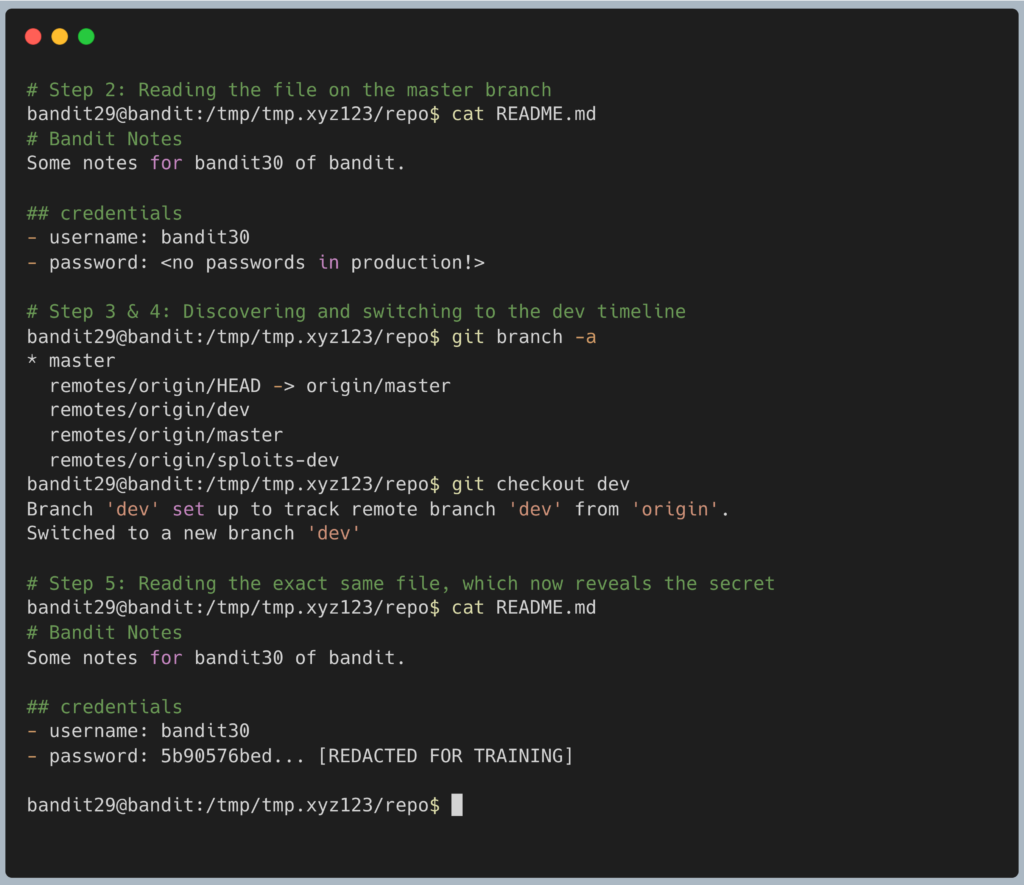
The terminal will output the password for Level 30. Copy this text to your clipboard. Type exit to close your connection, and get ready to SSH back in as bandit30.
DevOps in the Wild This is a classic enterprise security failure. Developers often mistakenly believe that putting API keys and database passwords in a “dev” or “testing” branch is safe because it isn’t deployed to the live production servers. However, anyone with read access to the repository can simply run git branch -a, check out the dev branch, and instantly steal the credentials. Secrets should never be hardcoded into Git, regardless of what branch they live on.
Troubleshooting Pitfalls If your terminal is throwing errors, here is what went wrong:
- Error:
fatal: not a git repositoryYou forgot to runcd repoafter cloning. You must be standing inside the Git project folder before anygitcommands will work. - The
git branch -acommand only shows* masterYou might have accidentally cloned the repository from Level 28 again instead of Level 29. Verify the URL you used in Step 1. - Error:
error: pathspec 'dev' did not match any file(s) known to gitYou likely made a typo when typinggit checkout dev. Ensure you type it exactly as written.