

Level 28 → 29: Digging into History (Git Logs)
The Challenge
The Objective: You are currently logged in as bandit28. Your objective is to find the password for bandit29. Like the previous level, the password is inside a Git repository.
The Constraints:
- You are logged in as
bandit28. - You have the repository URL:
ssh://bandit28-git@localhost/home/bandit28-git/repo. - When you clone and read the
README.mdfile, you will find that the password has been deleted and replaced with “x”s. You must look into the past to find it.
The Solution
The Concept: Version History and Commits The entire point of Git is that data is never truly deleted. Every time a developer saves a major change to the repository, they create a “commit”—a permanent snapshot of the code at that exact moment in time.
If someone accidentally hardcodes a password into a file, realizes their mistake, and deletes it in the next commit, the password is still permanently etched into the repository’s historical timeline.
To find it, you need two commands:
git log: This lists the entire timeline of commits, from newest to oldest. Every commit has a unique, long alphanumeric hash (e.g.,a1b2c3d4...) and a message describing the change.git show [commit-hash]: This command compares a specific historical commit against the one that came just before it, showing you exactly what lines of text were added (+) or removed (-) in that snapshot.
Execution: Building the Workspace and Inspecting the Past Follow these steps to clone the repository and travel back in time.
Step 1: Create your secure workspace, move into it, and clone the repository over port 2220. Type the following commands, pressing Enter after each:
Bash
mktemp -d
cd /tmp/tmp.xyz123
git clone ssh://bandit28-git@localhost:2220/home/bandit28-git/repo
(Type yes if prompted, then paste your bandit28 password).
Step 2: Move into the repository and read the current README file.
Bash
cd repo
cat README.md
(You will see the password has been censored: The password to the next level is: xxxxxxx).
Step 3: View the repository’s timeline using the log command. Type the following command and press Enter:
Bash
git log
(You will see a few commits. Look for the one with a message like “fix info leak” or “add password”. Copy the commit hash for the one where the password was likely removed or added).
Step 4: Use the show command to inspect what exactly happened during that commit. Type git show followed by the hash you copied. (You only need the first 7 or 8 characters of the hash).
Bash
git show 5192323
(If the output doesn’t reveal the text, press q to quit the viewer, run git log again, and try checking the commit right before it).
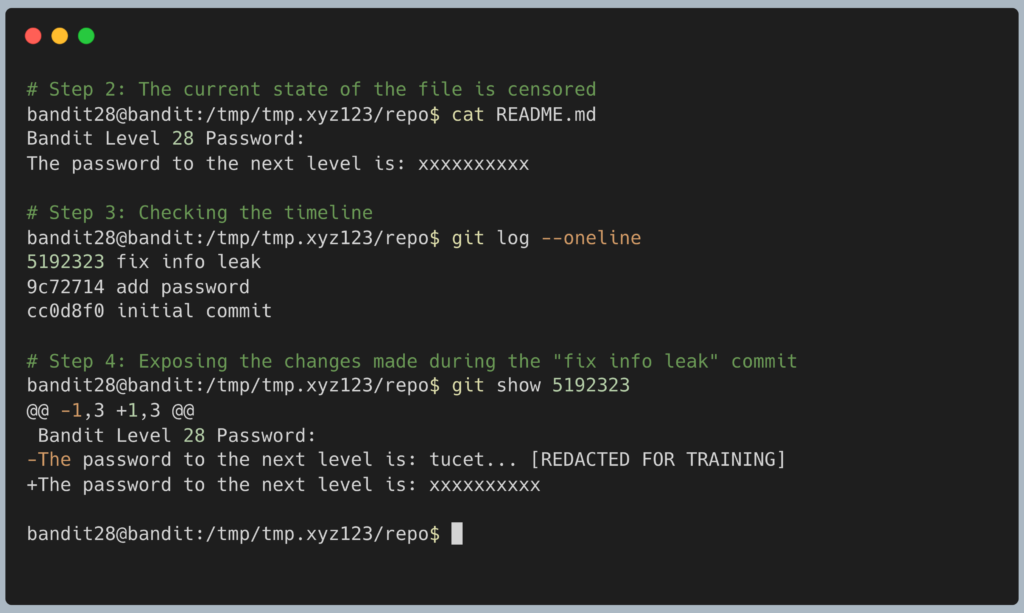
The terminal will output the file difference, showing the censored line being added (+) and the real password being removed (-). Copy the real alphanumeric password to your clipboard. Type exit to close your connection, and get ready to SSH back in as bandit29.
DevOps in the Wild This scenario is a massive real-world security crisis. Developers accidentally commit API keys or AWS credentials to public GitHub repositories every single day. Because tools like git log make it so easy to look at the history, automated hacker bots scan public repositories 24/7 to scrape these leaked keys the second they are pushed, even if the developer immediately deletes them in a panic. Once committed, the history must be forcefully rewritten, or the credentials must be revoked entirely.
Troubleshooting Pitfalls If your terminal is throwing errors, here is what went wrong:
- Error:
fatal: not a git repositoryYou forgot to runcd repoafter cloning. You must be standing inside the Git project folder beforegit logorgit showwill work. - The
git logorgit showcommand seems stuck Git uses a pager (likemoreorless) if the output is too long. If you see a:at the bottom of the screen, press theqkey to quit and return to your normal prompt.