
Level 11 → 12: The Caesar Cipher (Decoding ROT13)
The Challenge
The Objective: You are currently logged in as bandit11. Your objective for this level is to find the password stored in a file named data.txt located in your home directory.
The Constraints:
- You are logged in as
bandit11. - The
data.txtfile contains the password, but the text has been obfuscated using a ROT13 cipher. - You must translate the characters back into standard text to extract the actual password.
The Solution
The Concept: Character Translation and ROT13 ROT13 (Rotate by 13 places) is a simple substitution cipher that replaces every letter with the 13th letter after it in the alphabet. Because the English alphabet has 26 letters, ROT13 is perfectly symmetrical. Applying ROT13 to an already obfuscated ROT13 string reverses the process and brings back the original text (13 + 13 = 26).
To decode this in the Linux terminal, you use the tr (translate) command. The tr command reads standard input and swaps a set of characters for another set of characters. By piping the contents of the file into tr, you can instruct the system to map the first half of the alphabet to the second half, and vice versa.
Execution: Locating and Extracting Follow these steps to translate the text and extract the password.
Step 1: Verify the file is in the directory with you. Type the following command and press Enter:
Bash
ls
(You should see data.txt output on your screen.)
Now that you have confirmed the file’s presence, process the obfuscated text through a translation pipeline.
Step 2: Type the following command exactly as it appears below. Pay close attention to the capitalization inside the single quotes, then press Enter:
Bash
cat data.txt | tr 'A-Za-z' 'N-ZA-Mn-za-m'
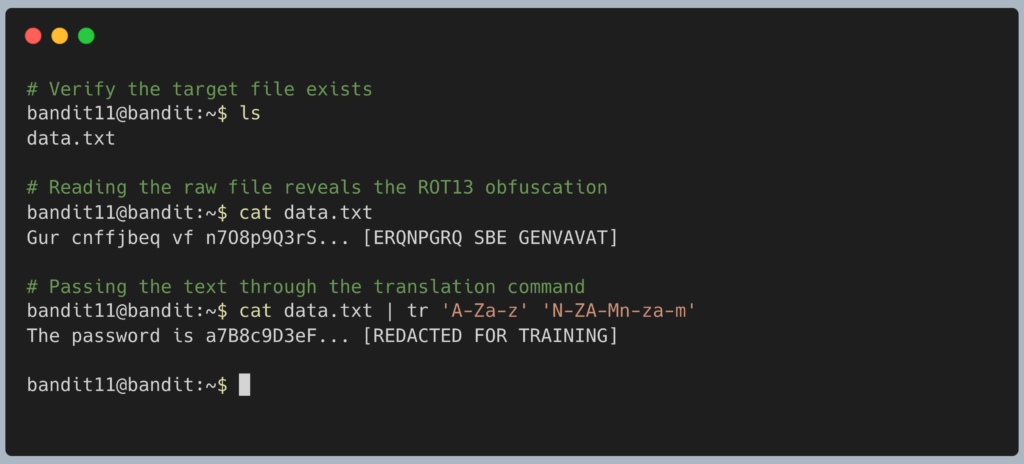
The terminal will process the translation and output the decoded plain text password. Copy this text to your clipboard. Type exit to close your connection, and get ready to SSH back in as bandit12.
DevOps in the Wild While modern IT professionals do not use ROT13 for actual security, the tr command itself is a highly utilized data formatting tool. DevOps engineers frequently use tr in automation scripts to sanitize text inputs. For example, if an engineer is pulling thousands of user-uploaded filenames from an AWS S3 bucket and needs to ensure they are compatible with a Linux web server, they might run echo "$filename" | tr ' ' '_' | tr 'A-Z' 'a-z'. This instantly replaces all spaces with underscores and converts all uppercase letters to lowercase, preventing broken web links.
Troubleshooting Pitfalls If your terminal is returning incorrect data or throwing errors, here is what went wrong:
- The output is still complete gibberish You likely made a typo in the second set of quotes (
'N-ZA-Mn-za-m'). This string explicitly maps A-Z to N-Z and then loops A-M to the end. If you mess up the casing or the hyphen placement, Linux will scramble the text instead of decoding it. - Error:
tr: missing operandYou forgot to provide the second character set. Thetrcommand requires two distinct sets so it knows exactly what to swap. - The terminal cursor drops to a new line and hangs You opened a single quote (
') but forgot to close it. The terminal is waiting for you to finish your sentence. PressCtrl + Cto cancel the command and start over.