
Level 13 → 14: Cryptographic Keys (SSH Private Keys)
The Challenge
The Objective: You are currently logged in as bandit13. Your objective for this level is to find the password for bandit14, which is securely stored in /etc/bandit_pass/bandit14.
The Constraints:
- You are logged in as
bandit13. - You cannot read the target file directly because it is restricted; only the user
bandit14has read permissions for that file. - You do not have the password for
bandit14. Instead, you have been provided with an SSH Private Key (namedsshkey.private) in your home directory.
The Solution
The Concept: Asymmetric Encryption and Localhost Up until this point, you have been authenticating to the Bandit server using passwords. However, passwords can be guessed, brute-forced, or intercepted.
The industry standard for secure server access is SSH Key Authentication. This uses a cryptographic pair: a Public Key (which acts like a padlock placed on the server) and a Private Key (which acts as the physical key you hold on your computer). If you possess the correct Private Key, the server will let you in without ever asking for a password.
To solve this level, you must use the ssh command, but with two distinct changes:
- The Identity Flag (
-i): You must use the-iflag to point the SSH client to the specific private key file you want to use for authentication. - Localhost: Because you are already inside the Bandit server, you do not need to SSH across the internet to
bandit.labs.overthewire.org. You can SSH directly from your current session into thebandit14account on the very same machine. In networking, the address for “the machine I am currently on” is called localhost.
Execution: Authenticating and Extracting Follow these steps to authenticate using the key and extract the password.
Step 1: Verify the private key is in the directory with you. Type the following command and press Enter:
Bash
ls
(You should see sshkey.private output on your screen.)
Now, initiate an SSH connection to bandit14 using that key, targeting the local machine.
Step 2: Type the following command exactly as it appears below, then press Enter:
Bash
ssh -i sshkey.private bandit14@localhost -p 2220
(Type yes if it asks to confirm the connection footprint. You will instantly be logged in as bandit14 without a password prompt.)
Now that you are operating as bandit14, you have the permissions required to read the target file.
Step 3: Read the password file. Type the following command and press Enter:
Bash
cat /etc/bandit_pass/bandit14
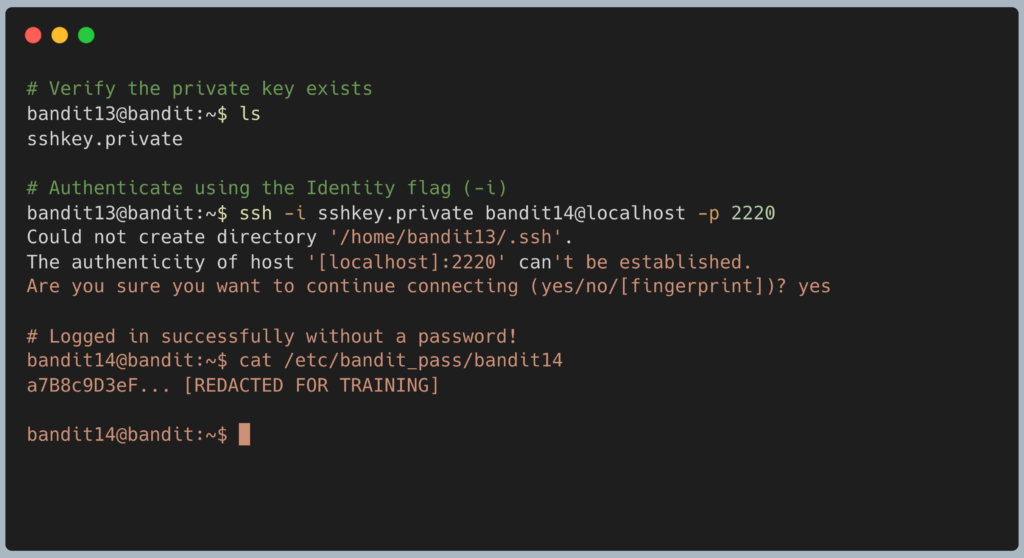
The terminal will output the password. Copy this text to your clipboard. You are technically now two layers deep in SSH sessions. Type exit to close the bandit14 session, and type exit again to close the bandit13 session.
DevOps in the Wild In enterprise cloud environments, password authentication for SSH is completely disabled by default. If you spin up an Ubuntu server in AWS or Google Cloud, you cannot log in with a username and password. You must provide a Public SSH key during server creation, and your local machine must hold the matching Private Key. This eliminates the threat of automated password brute-force attacks across the internet.
Troubleshooting Pitfalls If your terminal is throwing errors, here is what went wrong:
- The terminal asks you for
bandit14‘s password You either forgot the-i sshkey.privateflag, or you made a typo in the filename. The SSH client fell back to asking for a password because it didn’t receive a valid key. - Error:
Connection refusedYou forgot to include the-p 2220flag. Even though you are on localhost, the server’s SSH daemon is still strictly listening on port 2220, not the default port 22. - Error:
UNPROTECTED PRIVATE KEY FILE!If you were doing this on your local Mac or Linux laptop, this error means your private key file has permissions that are too open (e.g., other users can read it). SSH is highly secure and will actively refuse to use a private key unless its permissions are locked down (usingchmod 600 sshkey.private). For this specific wargame level, the permissions are already set correctly for you.