
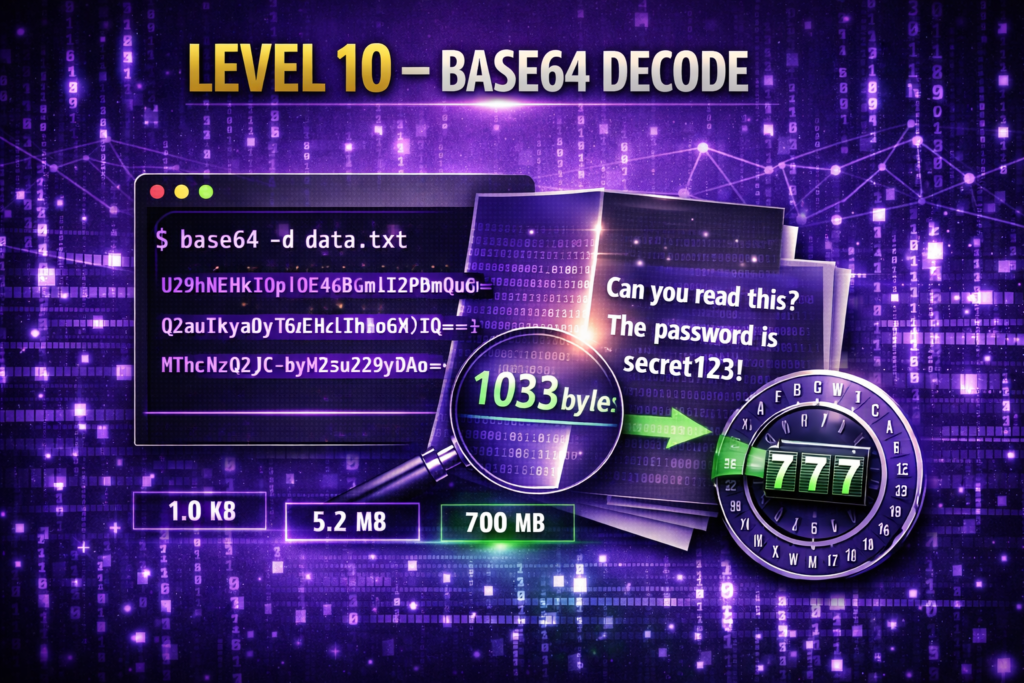
Level 10 → 11: Decoding Data (Understanding Base64)
The Challenge
The Objective: You are currently logged in as bandit10. Your objective for this level is to find the password stored in a file named data.txt located in your home directory.
The Constraints:
- You are logged in as
bandit10. - The
data.txtfile contains what appears to be a password, but it is actually a string of Base64 encoded data. - You must decode this string back into its original plain text format to get the true password.
The Solution
The Concept: Encoding vs. Encryption When beginners see a Base64 string (which usually looks like a random block of text ending in one or two equal signs, like VGhpcyBpcyBhIHRlc3Q=), they often assume it is heavily encrypted. It is not.
Encryption requires a secret key to unlock. Encoding is simply translating data from one format to another so that computers can transmit it safely. Base64 takes complex binary data and translates it into a standard alphabet of 64 safe, printable characters. Because no secret key is required, anyone can decode a Base64 string instantly if they have the right tool.
In Linux, that tool is the built-in base64 command. By passing it the -d (or --decode) flag, you instruct the system to reverse the translation and print the original text.
Execution: Locating and Extracting Follow these steps to decode the file and extract the password.
Step 1: Verify the file is in the directory with you. Type the following command and press Enter:
Bash
ls
(You should see data.txt output on your screen.)
Now that you have confirmed the file’s presence, decode its contents.
Step 2: Type the following command exactly as it appears below, using the decode flag, then press Enter:
Bash
base64 -d data.txt
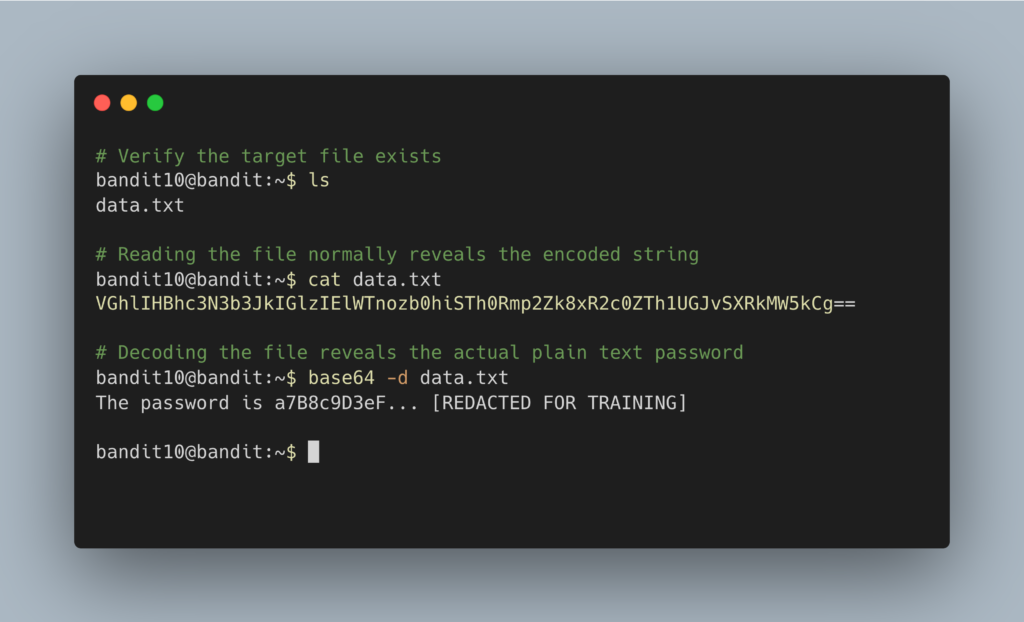
The terminal will output the decoded plain text password. Copy this text to your clipboard. Type exit to close your connection, and get ready to SSH back in as bandit11.
DevOps in the Wild Understanding Base64 is absolutely critical for modern Cloud Engineers. If you work with Kubernetes (the industry standard for container orchestration), you will quickly learn that Kubernetes “Secrets” (where it stores API keys and database passwords) are stored entirely in Base64. Furthermore, when DevOps engineers need to send complex SSH certificates or binary tokens through JSON web APIs, they encode them in Base64 first to ensure the data doesn’t accidentally trigger a formatting error during transmission.
Troubleshooting Pitfalls If your terminal is returning incorrect data or throwing errors, here is what went wrong:
- The terminal output an even longer, crazier string of random characters You forgot the
-dflag. By typingbase64 data.txt, you asked the system to take an already encoded string and encode it again. Use your UP arrow and add-d. - Error:
base64: invalid inputThebase64 -dcommand only works if the target file contains strictly valid Base64 characters. If you accidentally try to run this on a standard text file or raw binary, it will fail. - The password is on the same line as your terminal prompt (e.g.,
password123bandit10@bandit:~$) This is normal! The decoded text insidedata.txtsimply didn’t include a “newline” character at the end of it, so your terminal prompt printed immediately after the password. Just copy the password itself.