

Level 15 → 16: Encrypted Connections (Introduction to SSL/TLS)
The Challenge
The Objective: You are currently logged in as bandit15. Your objective for this level is to find the password for bandit16. Similar to the previous level, you must retrieve it by submitting your current bandit15 password to a service running on a local port. This time, the target is port 30001.
The Constraints:
- You are logged in as
bandit15. - The service on port 30001 strictly requires a secure, encrypted SSL connection.
- A standard Netcat (
nc) connection will fail because it transmits data in raw, unencrypted plain text.
The Solution
The Concept: SSL/TLS and the OpenSSL Client In the previous level, you learned how to talk to a port using Netcat. However, if you attempt to use Netcat to connect to port 30001, the server will either drop the connection instantly or return an error. The server is expecting a cryptographic “handshake” before it will accept any text, and Netcat does not know how to perform that handshake.
To establish an encrypted connection from the command line, IT professionals use the openssl command suite, specifically the s_client (Secure Client) tool. Think of openssl s_client as the encrypted, secure version of Netcat. It wraps your terminal session in a TLS/SSL tunnel, allowing you to securely transmit text to an application that requires encryption, much like how a web browser uses HTTPS instead of HTTP.
Execution: Connecting and Transmitting Follow these steps to retrieve your current password, establish the secure tunnel, and submit the data.
Step 1: Retrieve the bandit15 password so you have it ready to copy and paste. Type the following command and press Enter:
Bash
cat /etc/bandit_pass/bandit15
(Copy the output string to your clipboard).
Step 2: Open a secure network connection to the target port using OpenSSL. Type the following command exactly as it appears below, then press Enter:
Bash
openssl s_client -connect localhost:30001
(The terminal will flood your screen with technical data about the server’s SSL certificate chain. Do not panic. Once the text stops scrolling, the connection is open and waiting for your input).
Step 3: Paste the bandit15 password you copied in Step 1 into the terminal and press Enter to transmit it through the secure tunnel.
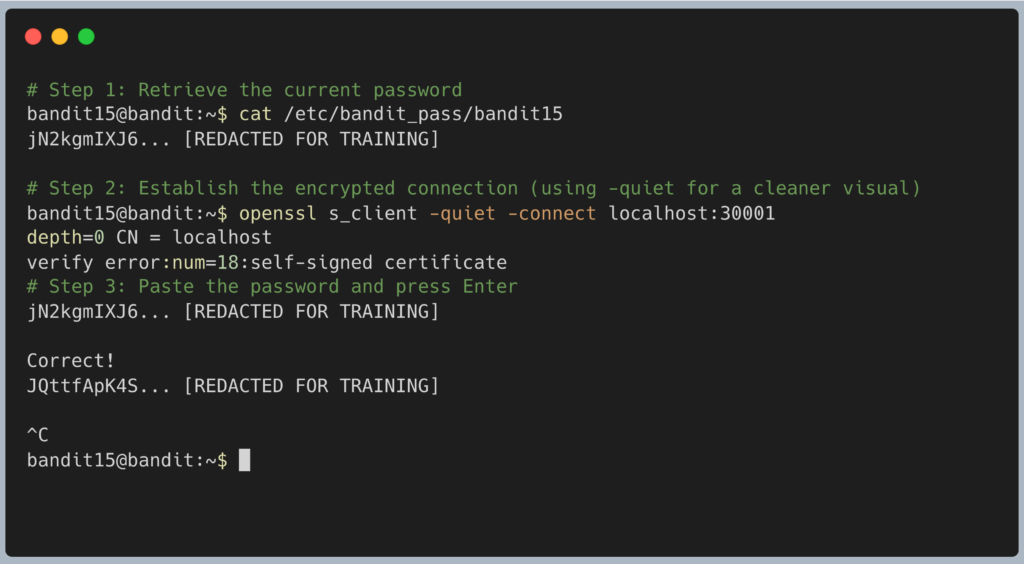
The encrypted service will verify your submission and output the password for bandit16. Copy this new password to your clipboard. Press Ctrl + C to force the connection to close, type exit to end your SSH session, and get ready to log in as bandit16.
DevOps in the Wild DevOps engineers rely heavily on openssl s_client to debug web servers. If a company’s website suddenly stops working and browsers are throwing “Not Secure” warnings, an engineer will run a command like openssl s_client -connect www.company.com:443. The output instantly reveals if the SSL certificate has expired, if it was signed by the wrong certificate authority, or if the server is offering outdated, vulnerable encryption protocols.
Troubleshooting Pitfalls If your terminal is returning incorrect data or throwing errors, here is what went wrong:
- I typed
nc localhost 30001and the server just hung or disconnected The server is waiting for an SSL handshake, and Netcat is waiting for you to type plain text. They are speaking two entirely different languages. You must useopenssl. - The screen flooded with certificate data, and I do not see a prompt OpenSSL does not usually provide a clean
>prompt when it finishes connecting. It just drops to a blank new line. Simply paste your password and hit Enter. (Pro-tip: You can append the-quietflag to your command to hide all the certificate data and make it look exactly like a clean Netcat session). - Error:
unknown option -connectEnsure you are usings_clientimmediately afteropenssl. The-connectflag is specifically a feature of thes_clientmodule.
Pingback: OverTheWire Bandit Challenge series – DigiSpidey