
Level 14 → 15: Network Communication (Talking to Ports)
The Challenge
The Objective: You are currently logged in as bandit14. Your objective for this level is to find the password for bandit15. Unlike previous levels, the password is not stored in a file. Instead, you must retrieve it by submitting your current bandit14 password to a service running on port 30000 on the local machine.
The Constraints:
- You are logged in as
bandit14. - You need to know the
bandit14password you just acquired in the previous level. - You must establish a raw network connection to port 30000 to transmit this data.
The Solution
The Concept: Ports and Netcat (nc) In networking, an IP address (or localhost) identifies a specific computer, but a port identifies a specific service running on that computer. Think of the IP address as an apartment building, and the port as a specific apartment number. Web traffic uses port 80 or 443, SSH uses port 22 (or 2220 for this wargame), and custom applications can run on any port up to 65535.
To talk directly to a port from the command line, IT professionals use Netcat (often triggered by the command nc). Netcat is known as the “Swiss Army knife” of networking. It allows you to open a raw TCP or UDP connection to any open port, type text on your keyboard, and send that text directly into the waiting application.
Execution: Connecting and Transmitting Follow these steps to retrieve your current password, establish the connection, and submit the data.
Step 1: Retrieve the bandit14 password so you have it ready to copy and paste. Type the following command and press Enter:
Bash
cat /etc/bandit_pass/bandit14
(Copy the output string to your clipboard).
Step 2: Open a network connection to the target port using Netcat. Type the following command exactly as it appears below, then press Enter:
Bash
nc localhost 30000
(The terminal may appear to “hang” or drop to a blank line. This is normal; Netcat has connected and is waiting for you to type something).
Step 3: Paste the bandit14 password you copied in Step 1 into the terminal and press Enter to transmit it.
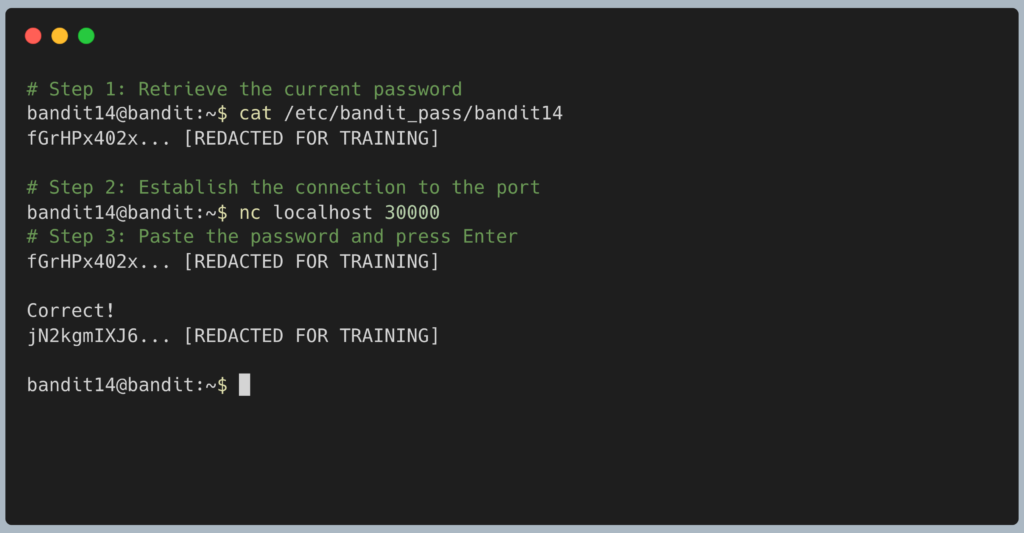
The service on port 30000 will verify your submission and immediately output the password for bandit15. Copy this new password to your clipboard. Press Ctrl + C if the connection does not close automatically. Type exit to close your SSH session, and get ready to log in as bandit15.
DevOps in the Wild DevOps engineers and network administrators use nc constantly to troubleshoot firewall issues. If a web server refuses to connect to a database, an engineer will not immediately start rewriting application code. Instead, they will SSH into the web server and run a command like nc -vz database.internal.net 5432. If Netcat reports “Connection refused” or times out, the engineer instantly knows the network firewall is blocking the traffic, saving hours of misdirected debugging.
Troubleshooting Pitfalls If your terminal is returning incorrect data or throwing errors, here is what went wrong:
- The terminal just dropped to a blank line and nothing is happening This means you successfully connected! Netcat is waiting for you to provide input. Simply paste your password and hit Enter.
- The server responds with
Wrong! Please enter the correct current passwordYou submitted the wrong password, or you accidentally copied an extra space or newline character when copying thebandit14password. Try copying it again carefully. - Error:
Connection refusedYou either misspelledlocalhostor typed the wrong port number. The system is telling you there is no service listening at that specific address/port combination.
Pingback: OverTheWire Bandit Challenge series – DigiSpidey